
Most AI image tools are built around a single input box. You type a prompt, click generate, and get a result. That’s fine for one-off images—but it breaks down the moment your creative process involves multiple steps, multiple models, or multiple outputs you want to connect together. You end up copying results manually from one tool to another, re-entering the same prompt in slightly different forms, and losing track of which version of an image you used as a reference two sessions ago. Every step feels like starting over.
That’s exactly the problem an AI Canvas Workflow is designed to solve.
What Is an AI Canvas Workflow?
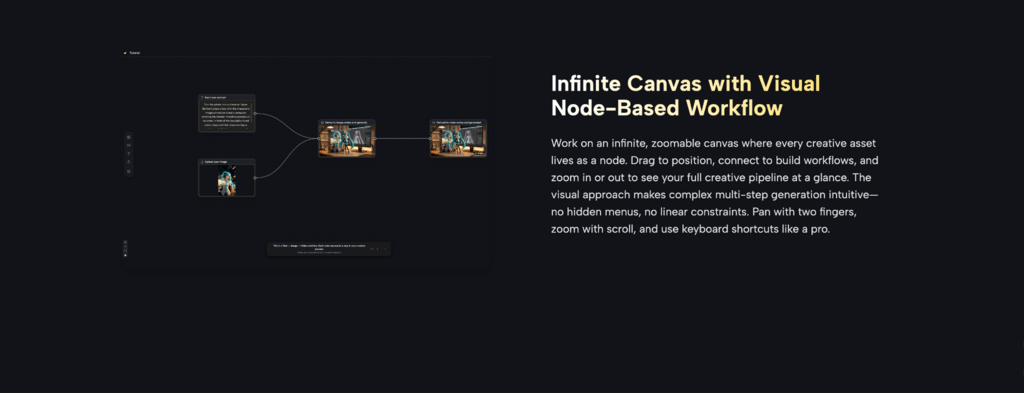
An AI Canvas Workflow is a visual, node-based system for building multi-step AI generation pipelines on an infinite canvas. Instead of treating each generation as an isolated event, you connect nodes—Text, Image, Video, Upload—into a flowing creative pipeline. The output of one node becomes the input for the next, so the results of one generation step flow automatically into the next without any manual file handling.
Think of it as a visual flowchart for your creative process: structured, repeatable, and easy to iterate on. You can see your entire pipeline at a glance—every step, every connection, every dependency—laid on the canvas. If something isn’t working, you can pinpoint exactly which node to adjust and regenerate just that step, without touching anything else.
How AI Canvas Workflow Works in Practice
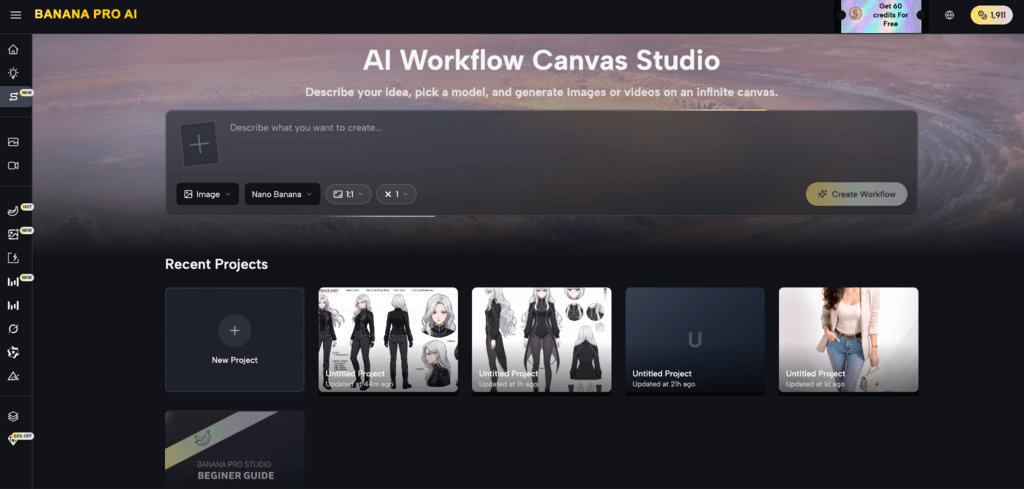
The best way to understand an AI Canvas Workflow is to walk through how it actually functions in Banana Pro AI Studio, one of the few platforms that puts this workflow model at the center of its design.
Step 1: Open the Canvas
Every project starts with an infinite, zoomable canvas. This is your workspace—nothing is hidden in menus, nothing is linear. You position nodes where you want them, zoom out to see the full pipeline, or zoom in to focus on a single generation. Everything auto-saves in real time, so you can close the browser and return to exactly where you left off.
Step 2: Add Nodes
Click or drag from the sidebar to add nodes: Image generation, Video generation, Text prompt, or Upload asset. Each node type serves a specific purpose in the pipeline. Image nodes give you access to 9+ AI models and support aspect ratios from 1:1 to 21:9. Video nodes connect to Veo 3 and Veo 3.1. Text nodes hold prompt text that can feed into multiple downstream nodes at once. Upload nodes let you bring your own images or assets into the workflow as reference inputs.
Step 3: Connect Nodes
Drag from one node’s output handle to another’s input. A Text node can feed its prompt into an Image node. An Image node can pass its output into a Video node as a reference frame. You can chain as many nodes together as your workflow requires—a single Text node feeding three different Image nodes each running a different model, or two Image outputs converging into one Video node. The system validates connections automatically, so you can’t wire incompatible node types together.
Step 4: Generate and Iterate
Hit Generate on any node. Results appear directly on the canvas-no switching tabs, no separate preview window. If the output isn’t right, you have several options: adjust the prompt and regenerate, switch to a different AI model from the same node’s dropdown, or use “Based on This” to spin off a new node derived from an existing result while keeping the original intact for comparison. Batch generation lets you produce up to 4 variations at once, all displayed side by side so you can compare and pick the best direction.
Step 5: Export
Every generation is saved automatically to the project’s History panel, which keeps a record of every image and video you’ve produced across all sessions. High-resolution, watermark-free exports are available at any point—no separate export queue, no watermark removal step.
Why AI Canvas Workflow Approach Matters
The node-based canvas model solves several real problems that single-prompt tools can’t address:
Complex workflows become visual
A Text → Image → Video pipeline that would otherwise require three separate tools and manual file transfers happens in one place, in one connected view. You can see the entire chain of dependencies laid out in front of you, which makes it easier to reason about what to change when a result isn’t what you expected.
Iteration is fast and non-destructive
You can regenerate any individual node without affecting the rest of the pipeline. If the video output isn’t right but the image reference is exactly what you wanted, you only regenerate the video node—the image stays untouched. Undo/redo works across the entire canvas, so every action is reversible.
Multiple AI models in one place
Banana Pro AI Studio supports 9+ image models—including GPT-4o Image, Flux Kontext Pro, Seedream, and Z-Image Turbo—plus Veo 3 and Veo 3.1 for video. You switch models per node, so you can use a fast model for rapid concept exploration on one node and a higher-quality model for final output on the next, all within the same workflow.
Projects are persistent
Auto-save keeps everything in sync across sessions. The History panel tracks every image and video you’ve generated with timestamps and previews, so nothing is ever truly lost—you can always return to an earlier output even if you moved past it several sessions ago.
Who Should Use an AI Canvas Workflow?
This approach is a good fit for:
- Designers building style-consistent image sets or producing variations for client review, who need to maintain a visual reference anchor across multiple generations
- Content creators who need to go from concept to finished video in a single session, without switching between separate tools for image and video generation
- Marketers who need to generate multiple ad creative variations quickly—different aspect ratios, different models, different prompt angles—all organized in one project
- Anyone whose AI generation process involves more than one step
If you’ve ever found yourself copying outputs between tools, re-entering prompts in multiple places, or losing track of which version of an image you used as a reference—an AI Canvas Workflow is the more organized alternative. The pipeline is visible, the history is preserved, and every step connects to the next.
Conclusion
Banana Pro AI Studio is free to use. No credit card required. The platform walks you through the basics with a built-in beginner’s guide that demonstrates a live Text → Image → Video workflow directly on the interactive canvas—so you can follow along while building your first real pipeline at the same time.
If your creative process has outgrown the single-prompt box, the canvas is worth trying.

Chase Ortiz is part of the team at PaigeSimple, where he takes care of all the advertising requests. With a sharp eye for detail, Chase makes sure every advertising opportunity is handled smoothly, helping the site grow and reach more people. His ability to manage these tasks efficiently makes him an important part of the team.